
🎥 Streaming Setup
I've setup a local streaming server so we can broadcast our games to the living room TV for the spectators to watch. This is of course optional, but really cool for those with the right hardware!

Most of you are probably aware, but you'll need Open Broadcaster Software (OBS) and a recent NVIDIA or AMD graphics card to stream. This page will walk you through the setup process as there are some special settings to configure.
Install and/or open OBS.
Click on the settings button in the lower right-hand corner of OBS:
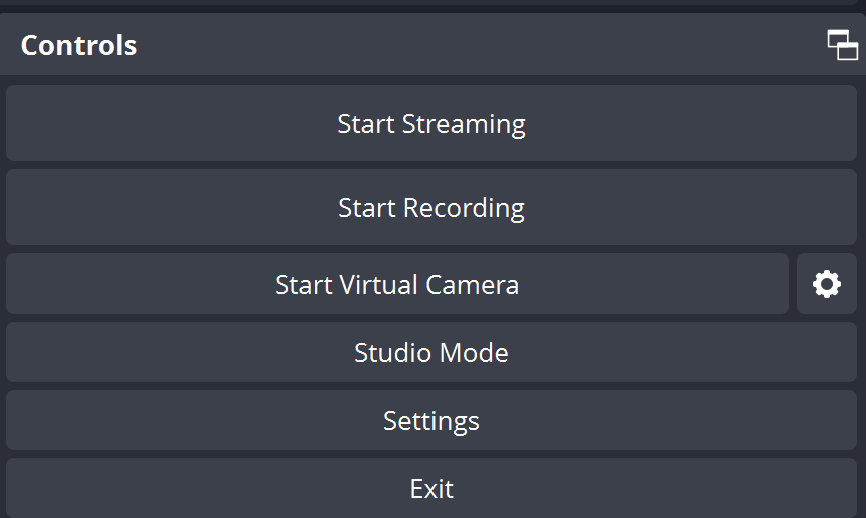
Click on the Stream settings.
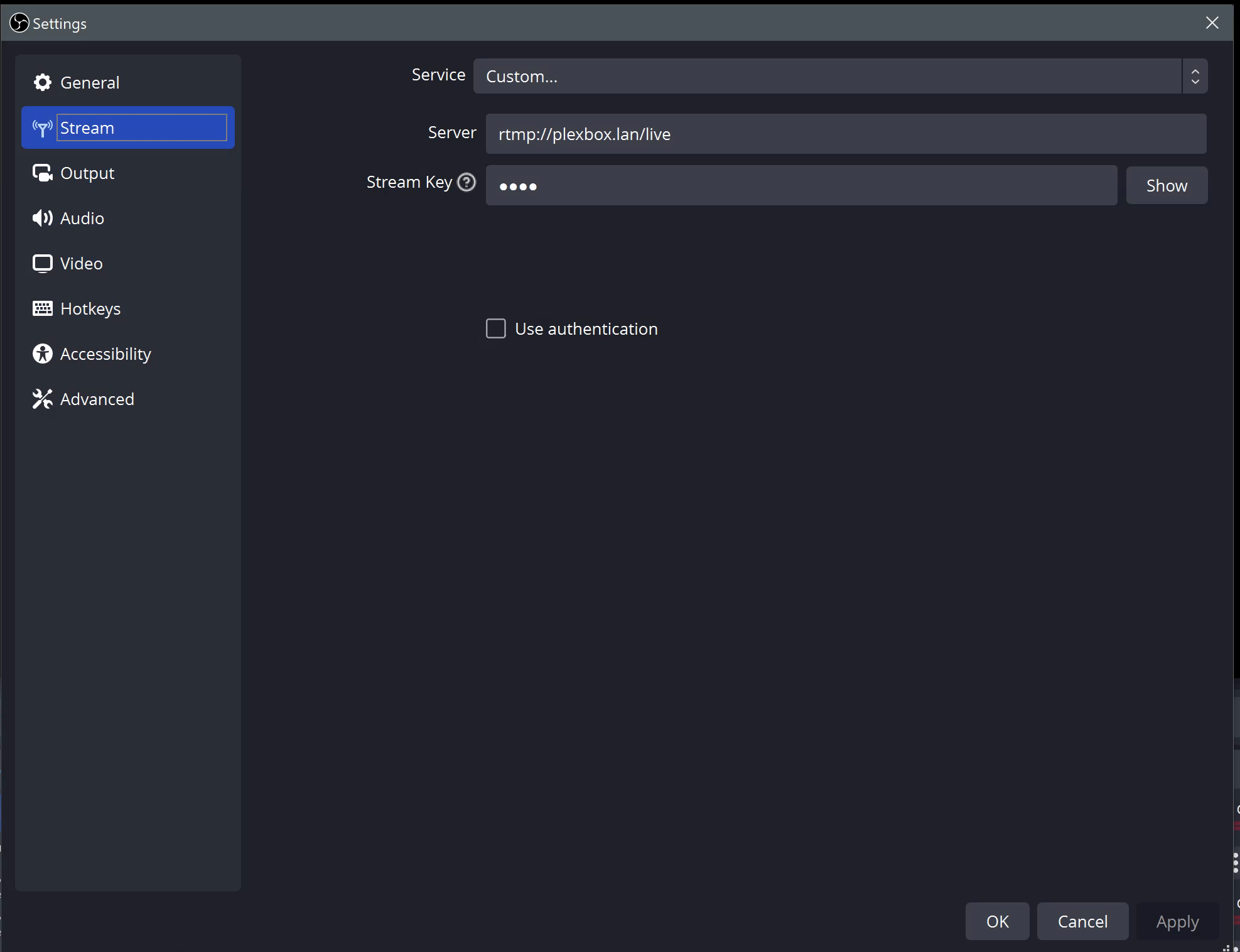
Select "Custom..." as the service.
Enter rtmp://plexbox.lan/live as the server name.
The stream key should be your first name, unless your have the same name as someone else. If that's the case, the two or more of you shall fight to the death for the right to use your name! Or just make-up something else.
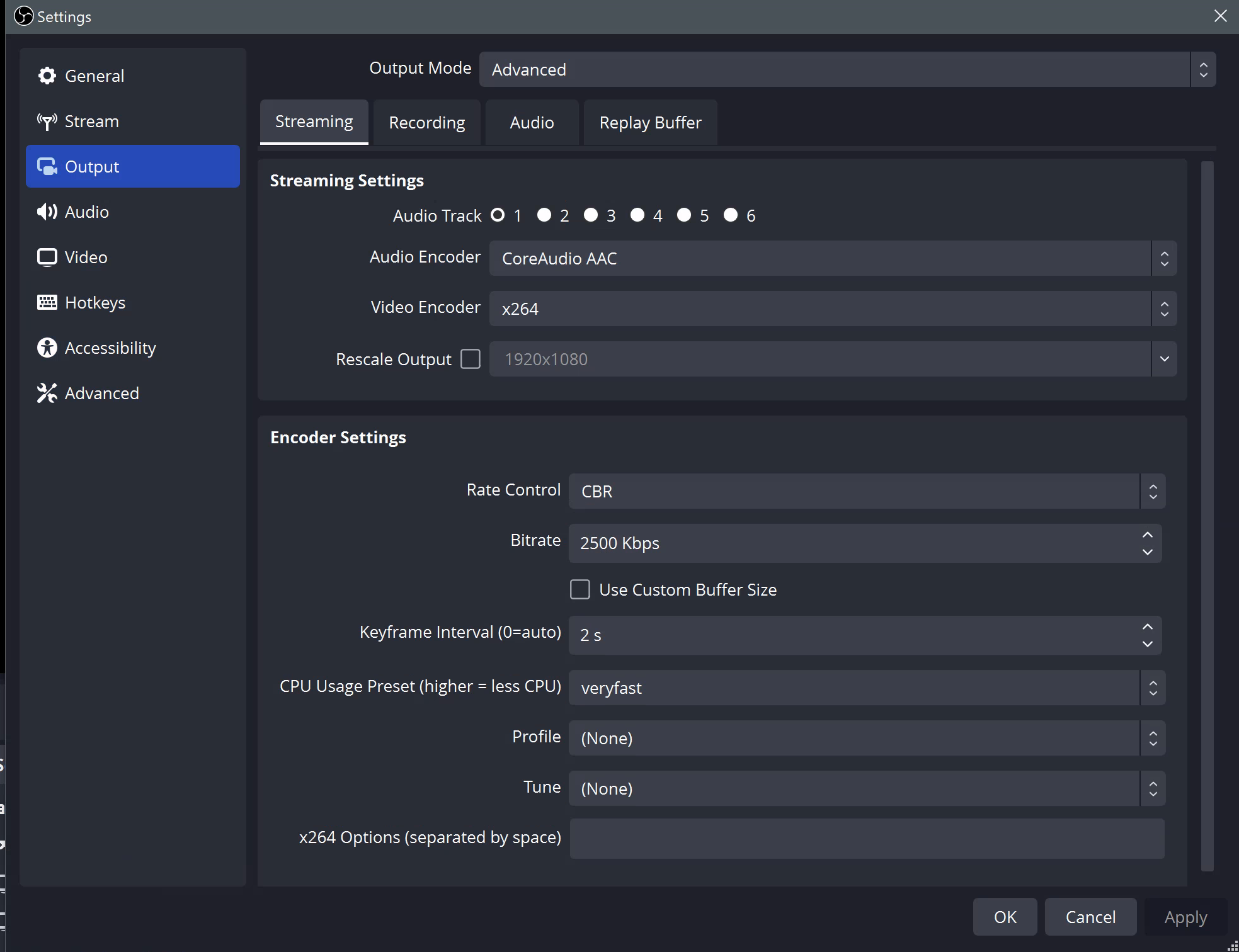
With the settings window still open, click on the Output label.
Set the dropdown Output Mode dropdown at the top from "Simple" to "Advanced".
In the Encoder Settings, set the keyframe interval to 2 s (2 seconds.) This is important for your stream to work correctly with the server.
Click the OK button.
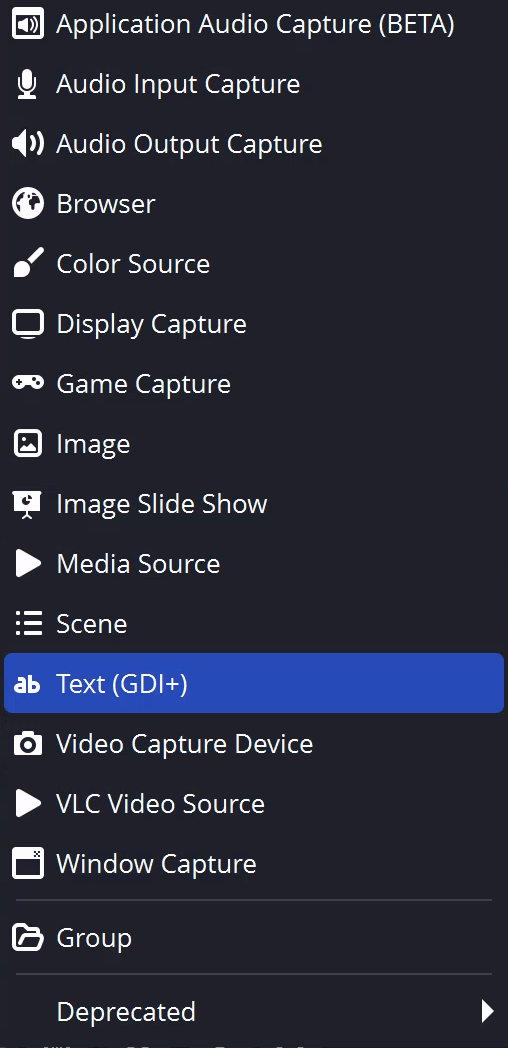
Assuming you already have a source configured for your game, add another source - a Text (GDI+) source.
Click the "Select font" button and choose a font size of 256, or a size that you feel is comfortable.
Enter your name in the text field. This does not have to be unique among everyone else, unlike the stream key from earlier.
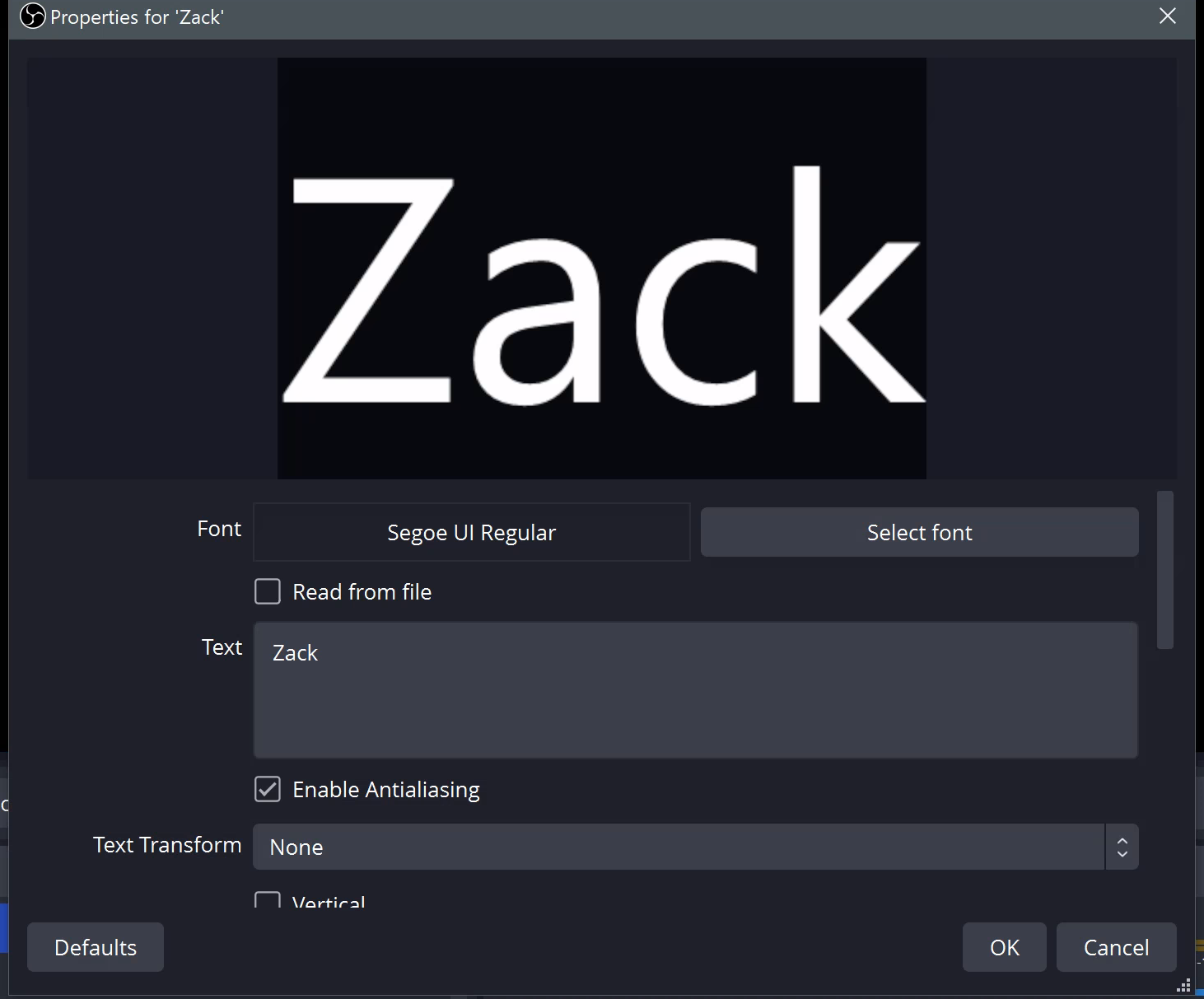
Click the OK button.
Position your name in the upper right hand corner of the streaming canvas.
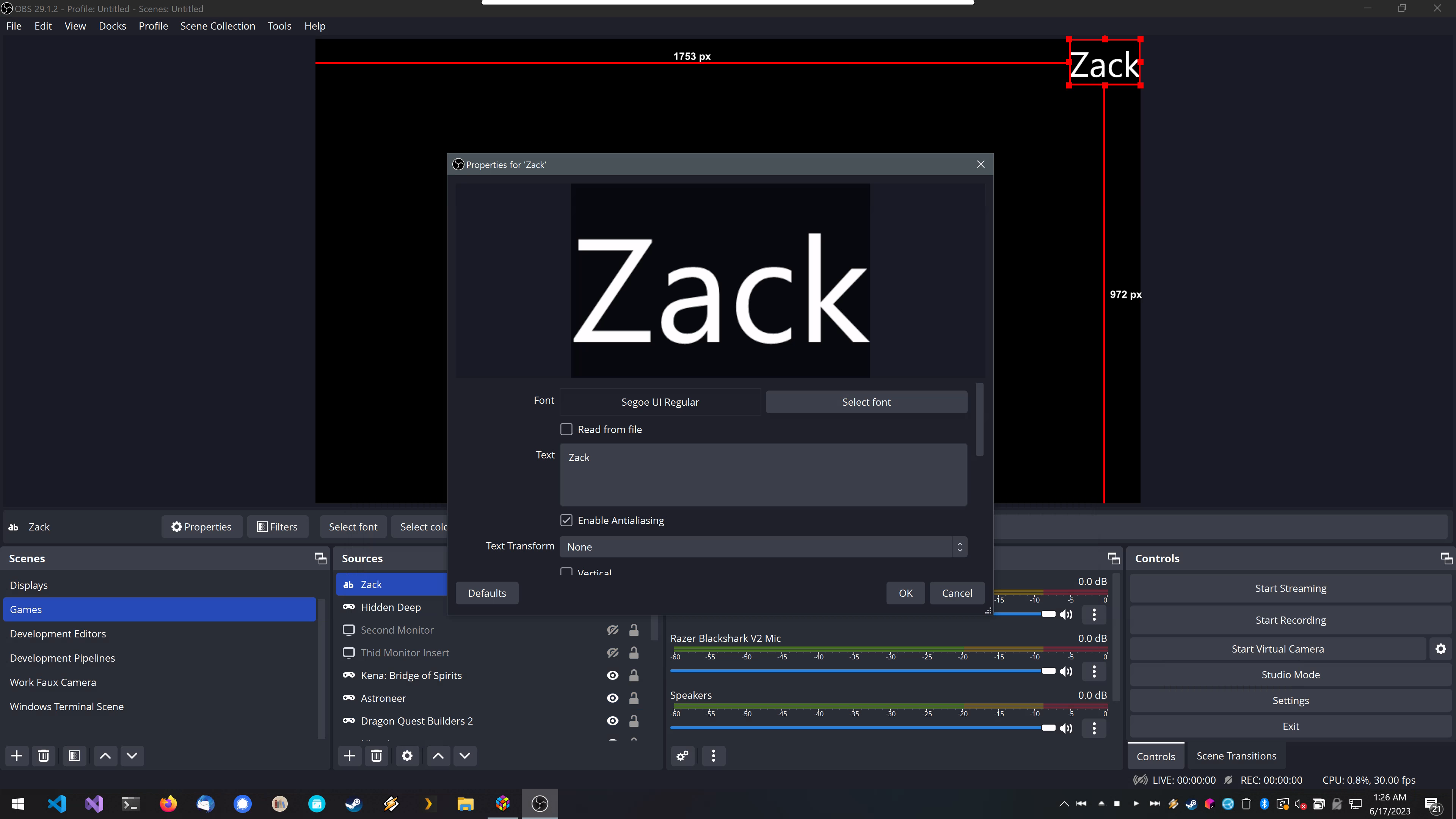
Click the "Start Streaming" button in the lower right hand corner of OBS.
Tell Zack to add you to the streaming playlist and give him your streaming key!